
Setting up Vin eRetail
0.5 min read
|This article covers Vin eRetail as an Order Source setup. To view the Order Destination documentation, go here
Supported functions:
- Order Download
- Inventory Sync
- Shipment Confirmation
Workflow
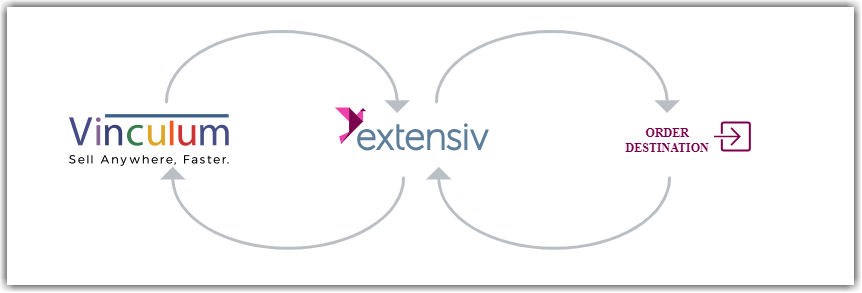
- Sales Order Download from Vin eRetail to Integration Manager
- Sales Order Delivery from Integration Manager to WMS/OMS
- Shipment Tracking from WMS/OMS to Integration Manager
- Shipment Tracking from Integration Manager to Vin eRetail
Required parameters
- Extensiv Integration Manager API User
- Integration Manager API Key
Step-by-step guide
- Launch Integration Manager from Extensiv Hub.
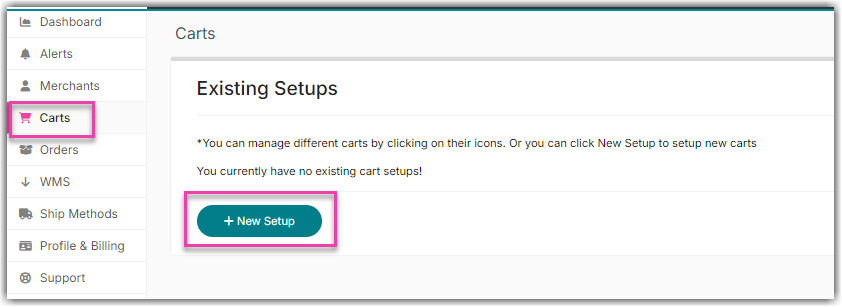
- Navigate to the Carts and select +New Setup
- Select Vin eRetail from the list of order sources.
-
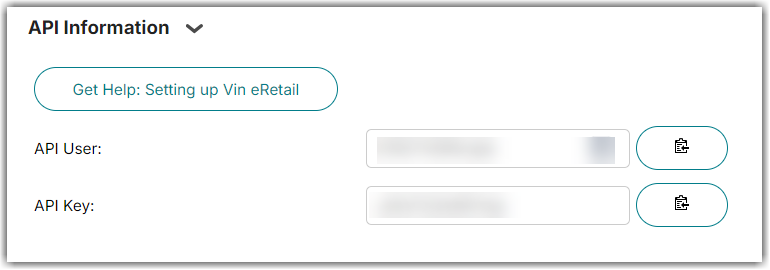
Copy the API User and API Key.
- Login to Vin eRetail
- Go to Sales > Manage Channels.
- Select Integration Manager (formerly CartRover) from the list.
- Fill in the API credentials from Integration Manager and set any other required configurations i.e. Order Sync from Date, Order Source Warehouse etc. and click Save.
Was this article helpful?
Share additional feedback about this article